






![[PenelopeTemplate]alexandra-lammerink-50YR0v44QUs-unsplash](http://static.showit.co/400/-sKPeYObSVua0wuOPMIryQ/shared/penelopetemplate_alexandra-lammerink-50yr0v44qus-unsplash.jpg "[PenelopeTemplate]alexandra-lammerink-50YR0v44QUs-unsplash")
![[PenelopeTemplate]alexandra-lammerink-4Mnu_FzKNWY-unsplash](http://static.showit.co/400/v6DcnJcbR5yNNW6Pw_N18Q/shared/penelopetemplate_alexandra-lammerink-4mnu_fzknwy-unsplash.jpg "[PenelopeTemplate]alexandra-lammerink-4Mnu_FzKNWY-unsplash")
![[PenelopeTemaple]alexandra-lammerink-51mGz4OKUJs-unsplash](http://static.showit.co/400/U8IpA62zSd6dYfONsI94kQ/shared/penelopetemaple_alexandra-lammerink-51mgz4okujs-unsplash.jpg "[PenelopeTemaple]alexandra-lammerink-51mGz4OKUJs-unsplash")
From A to Z: How To Organize Your Alphas Without Tearing Out Your Hair

The 2nd Annual Great Computer Spring Clean-a-thon continues on today with the lovely Natalie sharing a peek into her adventure in organizing her alphas. Take it away, Natalie!
Hello, everyone, it’s Natalie(KW) today, talking about alphas. I love to use multiple alphas on a page in my title work. Personally, I find that I just like my pages better when I do.
However, I don’t like the time it takes me to find an alpha that will match or recolor well. I’m not a tagger either, so when someone suggested in the Sweet Shoppe forums to put all of one letter into a folder so you could see all your alphas in one place, I knew I had found my answer.
Fast forward half a year or more, and I’m still sitting in the same spot. I haven’t done a single thing to get this ball rolling. When Nettio mentioned the Spring-clean-a-thon, I knew what my project would be. Organizing my alpha stash!
I started by making myself a folder:
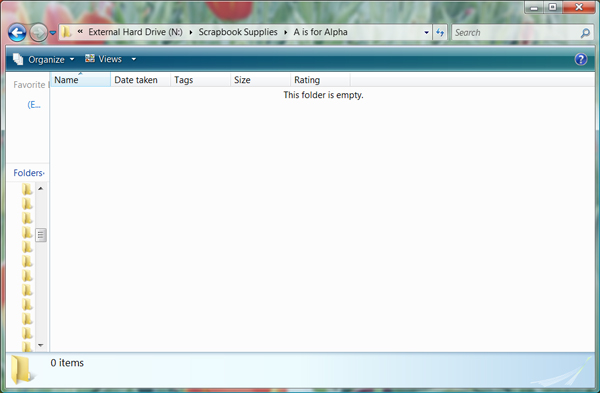
My stash is organized by designer: Scrapbook Supplies>Designer>Kit Name.
My plan was to go through each designers folder and each kit/alpha I have from the designer and COPY the alpha into my “A is for Alpha” folder. After I copied the A from each kit, I would rename the copied file Designer Name_Kit Name or Alpha Name if the alpha is a stand alone alpha.
That was the plan…
Immediately, I noticed some issues that would make my process a little harder.
Problem #1: Collaborations
The first thing is that when I save a kit, I save it in the designers folder. No problem.
Except for collabs.
Oh how I love them! Oh, how they made this process a little more complicated. Just because I save a kit in one designer’s folder, doesn’t mean that designer is the one who made the alpha.
I still saved the copied a file in my “A is for Alpha” folder under the designer’s name and kit such as: Traci Reed_Christmas Countdown. The problem is that this kit is actually in my Meg Mullens’ folder.
As of right now, I didn’t rearrange any kits into the collab partner’s folder because I like to keep collections together. I also like to keep my collabs in the designer’s folder that I CT for. I knew if I decided to start moving folders around that I would make a mess, not be consistent or get confused and I didn’t want to make this process any longer than it was already going to be.
In the end, I hope that when I’m browsing my “A is for Alpha” folding looking for items to use on my page, that if I pick a collab kit’s alpha, that I’ll just remember who the collab partner is. If not, I’ll search it in my Scrap Supplies file or in the store.
Problem #2: Sheet Alphas
The second problem I came across is when the alpha is not broken up into individual png files, but the is on an alpha sheet. I didn’t really want to go to all the work of cutting the A off of the alpha sheet and saving it as a separate png, but my OCD wouldn’t really allow me to do anything different.
So, I actually started cutting the A off of the alpha sheet and saving it as it’s own png file. This added a very significant amount to time to the process and after doing this for approximately 40 alphas, I threw my OCD to the wind and just started saving the whole alpha sheet to my “A is for Alpha” folder. I don’t love that I had to do this, but the amount of time that it saved me was probably at least 6 hours. I have a lot of alpha sheets!
Problem #3: Multi-Colored Alphas
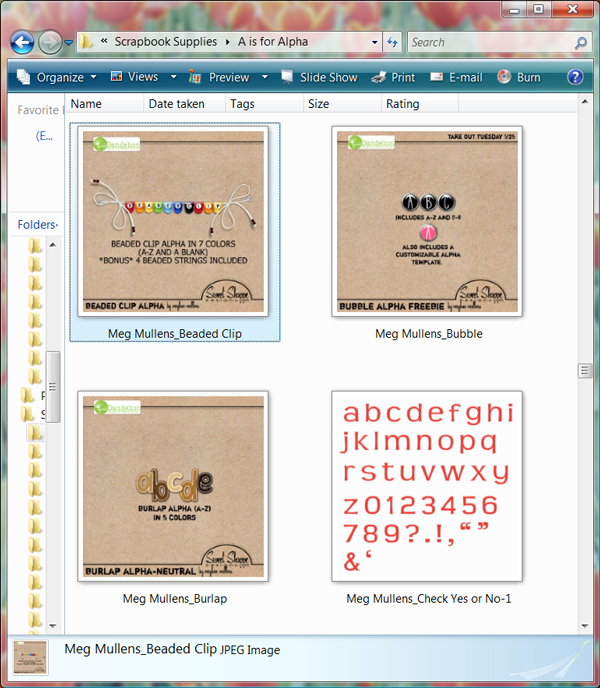
Another thing I learned about half way through was I have several stand alone alphas that come with six alphas packaged together that are the exact same but recolored. I was taking the A from each one of the colors and saving them in my alpha folder.
However, I realized I could just save the alpha preview that shows all the colors on it instead. Here’s a picture, in case you are having a hard time visualizing what I’m talking about:
Problem #4: Kit Specific Alphas
One other thing I decided is that there are some alphas that are so kit specific that I’m never going to use them on a page using any other kit than the kit it came with.
You know the alphas…the ones that are made using a stripe from the kit. It just isn’t realistic that I will ever be able to put it on another kit’s page.
After a while, I stopped copying these alphas to my “A is for Alpha” folder. I feel great about this decision because even on the very off chance that I would use one of these alphas again on a page, realistically, there will be a better choice in my huge alpha folder.
How To Save Time Renaming Alphas
I did learn a little time saver when it comes to renaming multiple alphas the same thing.
If you select all of the alphas from a kit, right-click on one and rename it, it will rename all the selected alphas at once and just number them 1, 2, 3, etc. Great time saver.
HOWEVER, there is a warning with this!! When designers cut apart their alphas, and they have several alphas in a kit, usually they put the separated alphas into different folders. While I was going through each folder, copying the different alphas into my alpha folder, I discovered something bad.
If after I copied one of the alphas to the alpha folder, went back to the kit folder and copied the second alpha to the alpha folder and did this for all the kit alphas, when you go to the alpha folder to rename the files, you have to be careful. It is when you go to rename them that you have to be careful that only the alphas you want to rename are selected.
At one point in my process, I renamed 45 alphas at once instead of the three I needed to. I had to pull out all of the misnamed alphas and figure out what kit and designer they belonged to, and rename them correctly. It was pretty discouraging.
The End Result
After all is said and done, here’s a little look at what my folder looks like:
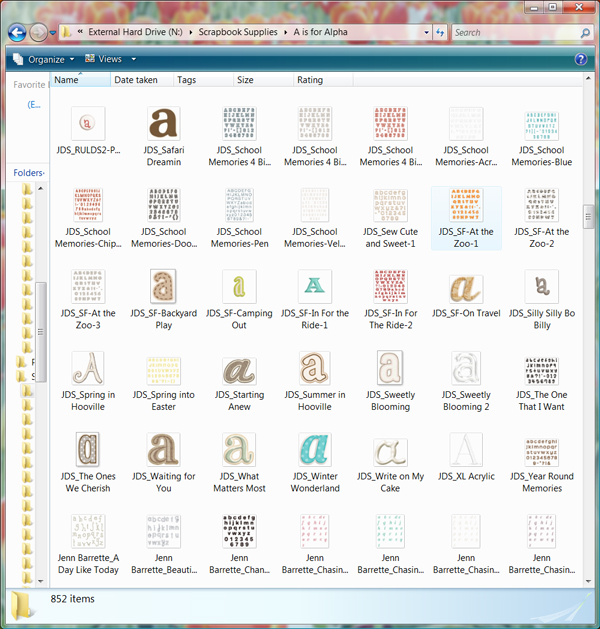
A whole 836 alphas copied and renamed later! Now, I’m itching to make a page! Now the key part is to make sure I copy the A or alpha sheet from ever kit I download into the folder so it stays up to date.
I really hope you’ll jump on the band wagon with me and get your alphas organized! Especially now that I figured out some ways to save time, not make mistakes and do it more efficiently! Let me know how your process goes or if you have any questions!
Woohoo, fantastic progress Natalie! I’ve been wanting to do this for forever and you’ve definitely answered some of the questions I had! Have a question for Natalie? Feel free to ask it in the comments.









I loved this idea when it was suggested, and I think I am going to implement something like this too. I might use shortcuts instead of renaming….I’ll have to see! I’m glad to see I’m not the only one addicted to her alphas!
Jen, I thought of shortcuts too, AFTER I was done. It would save tons of space!! When I thought of it though, I thought about how awesome it would be for the shortcut to take me to the place the alpha is saved so that I wouldn’t have to go and quickly find it on my own. That didn’t work though. 🙁 Still though, shortcuts would be an even better idea because of the space issue alone!
I have my alphas all colour coded the same as the flowers, buttons, papers etc: Black, white, grey, kraft, brown, striped, polka dots etc I find that it is easier to work by colour as that is the way my minds works.
Great Tutorial! I almost do it the same way. I’m a tagger though. I have alpha category in my ACDSee and tag A from each alpha folder. If the alpha folder comes with a blank ‘template’ where you can use any font/color you want, I add that in my sub-category called ‘blank’. For those that have multi-colored alphas, I just add the preview of the alpha.
Loved the post, Natalie! Can’t wait to see more great titles on your pages. I do it similiar, I have a collection with all my A letters. No re-naming though, Bridge shows the path where the image is saved, so I’m too lazy to do anything else.
YAY Natalie!!! When I first started organizing I had dreams of organizing all my alphas, until I realized that I don’t, or hardly ever, use an alpha outside of its own kit as I’m a kit scrapper. So I ended up only organizing (well, I just tag them under “alpha”) all my alpha element packs instead. Bravo, you for fixing everything! Woot! 😀
Great tips! And yay for getting organized! I plan to just copy the preview of each kit with a go-to alpha into a folder… I can usually find the alpha pretty quickly from there. Thanks for sharing your tips!
This is a great organizing series.
I also have my alphas organized by designer; however, can you share how you’re able to display the actual alpha rather than a folder? I would love to be able to see the images without having to click into the folder first. Thanks much!
Amy,
I think the reason it displays the actual alpha rather than a folder is because the alphas aren’t separated into separate folders. All 800+ of them are in one folder. I know that if you want to pick one specific thing from inside a folder to be on the folder preview, you can right click on the folder and select Preferences. Go to the last tab, called Customize and click the bottom button called Change Icon… Then you click the Browse… button and it brings up everything in the folder. Then you could select the alpha. I once went through my entire scrap stash and selected all my kit previews to be seen on the folder preview. After a day or two though, some of my folder previews reverted back to other things in the folder and now, there are almost none that haven’t reverted to something else in the folder. I don’t really know why, but it was frustrating and ended up not being worth the time. I’m on a PC though, maybe Macs are better with this…
Did that answer your question?
This is something I have to do also. In downloading I use to put them into an alphabet folder but then I left them in the kit folder after that I tried copying them so one went into the alpha folder and one in the kit. I also found many alphas in one kit of different colors. Now my alphas are all over the place. I’ve been collecting for a year now, yikes! Thanks for running thru what you ran into in organizing your alphas!
I am inspired – i’ve started tagging my alpha’s in Picassa – thanks for this great tut. xx kel
This is one of the two most helpful things I’ve come across in my explorations as a new digital scrapbooker. This was revolutionary for me! I probably use alphas about 100 times more frequently now. Thank you!
I’m an alpha lover, too and I also love to use multiple alphas on titles. So I also have been copying all my alphas to an only folder, however I feel it’s more complicated and confusing for me to have all of them together in one folder, so I have a folder named Alphas and inside of it I have all alphas folders from the designers and kits. I loved the tip on renaming. Perfect!! Thanks for sharing and I also really like the idea of splitting colored alphas packs in different folders so it’s easier to get them. I also find it very good to have separated png files from the sheets and I guess I can do that everytime I’m going to use an alpha that is in a sheet, this way it won’t be tiring. Whenever I’m scrapping I’ll spend about 10 minutes doing it and that’s it, not too long and everything is going to be in its place in no time and much easier to use next time.
Loving these posts about organizing digital supplies and documents. Thanks for sharing!